

Meny
Supplier
Suppliers
NB! Remember to answer all the questions within each category.
There is a video at the bottom explaining the process of registering, mapping,
and submitting required information.
1.0 How to get invited
You can either be invited via a link (see section 2.0), or you can be invited via email, where you’ll receive a username and password (see section 2.1).
2.0 Invited via link
If you open the link you have been assigned, you will encounter this page:
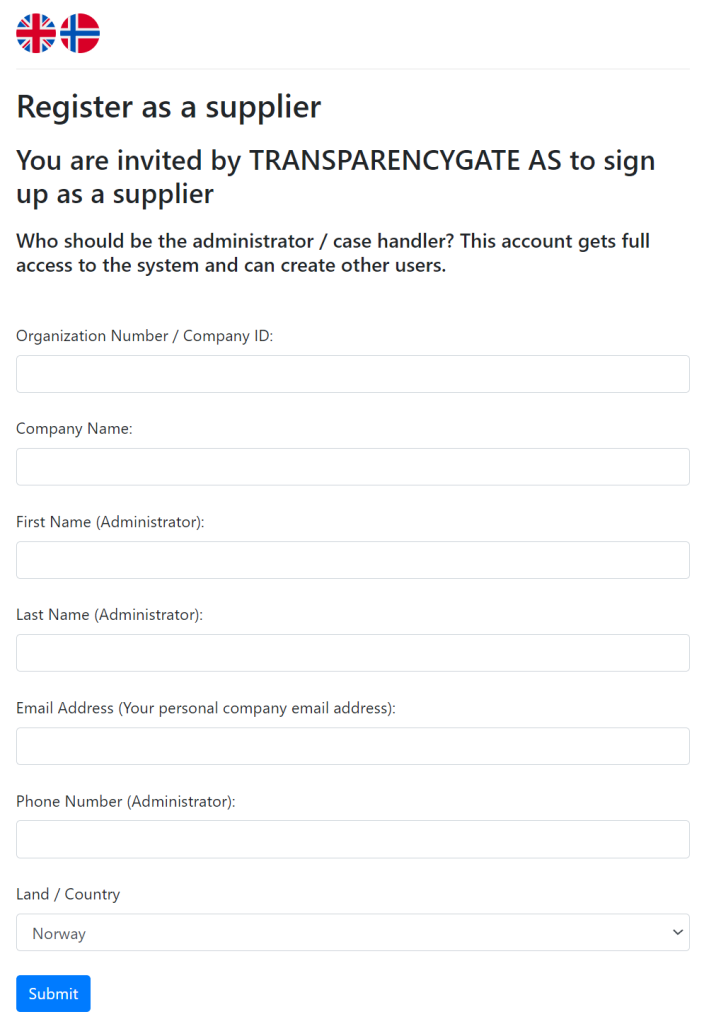
Here, you can register as a supplier. Please fill out all fields and then click “Submit.”

You will now receive an email from Digitaliq AS with your username and password.
2.1 E-mail with your username and password
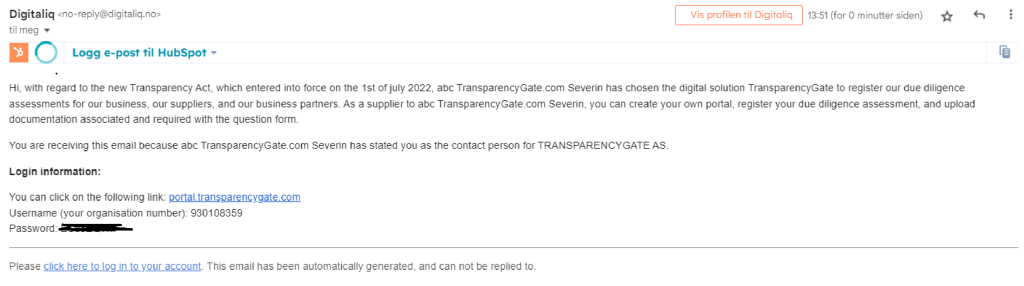
Click on the link and log in as a supplier.
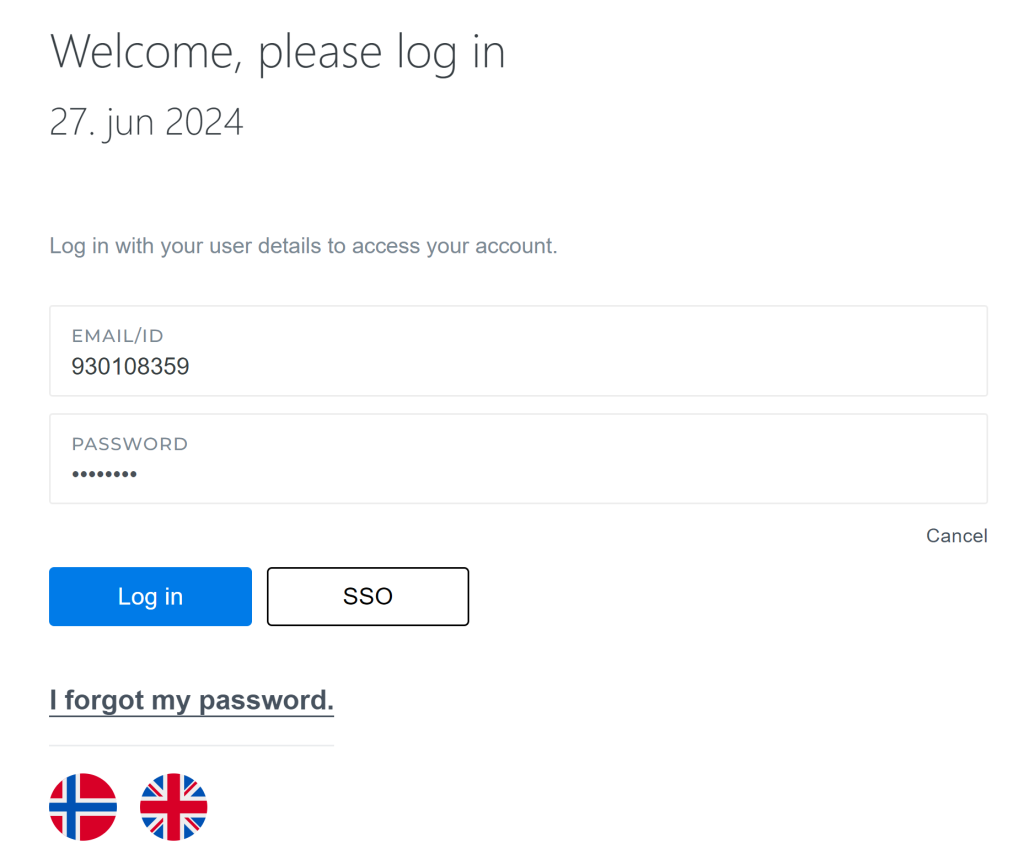
2.2 Login
Once you access the login page, log in using the username and password you have been assigned.
3.0 Process After Login
3.1 Language for the portal
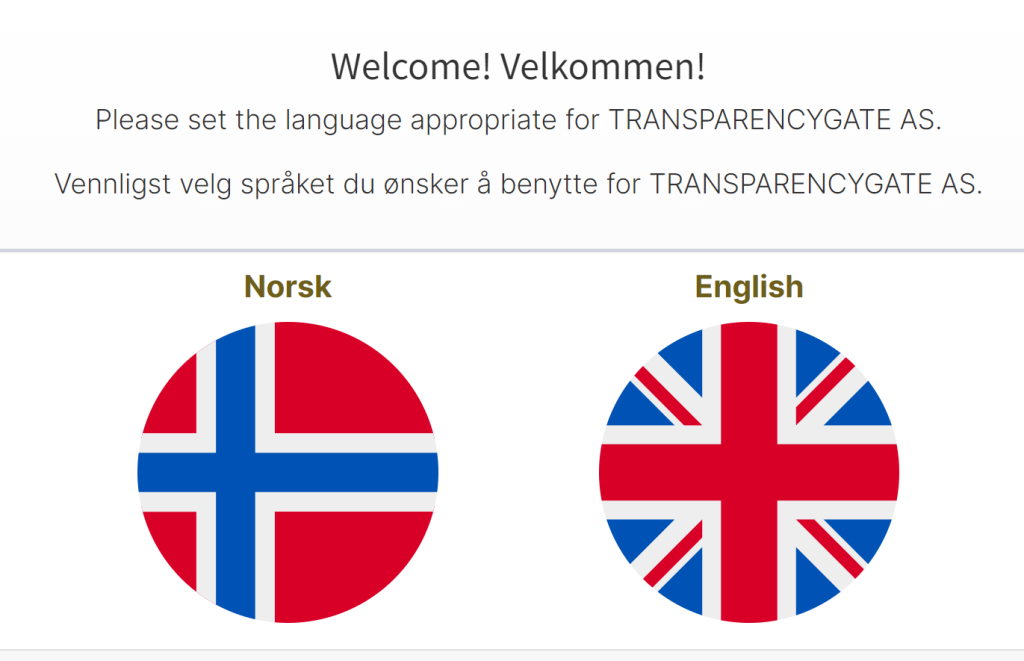
When logging in for the first time, you need to select your preferred language.
You can change the language at any time by clicking the flag icon in the top right corner.

3.2 Mapping
This is the first page you are presented with after selecting the language for the portal.
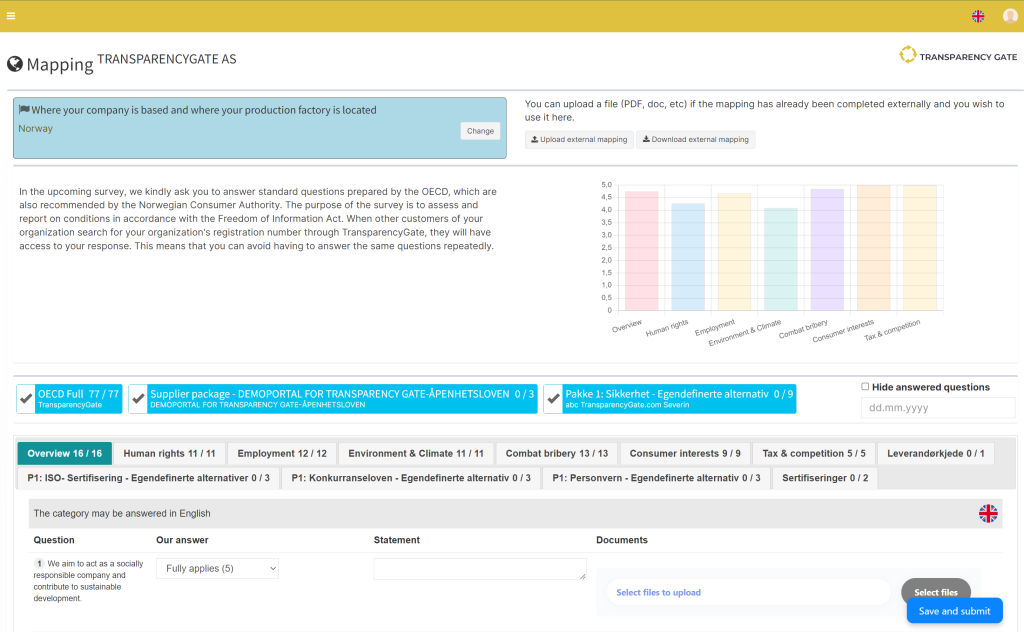
3.2.1 Which country do you trade with?
Add the countries you trade with.
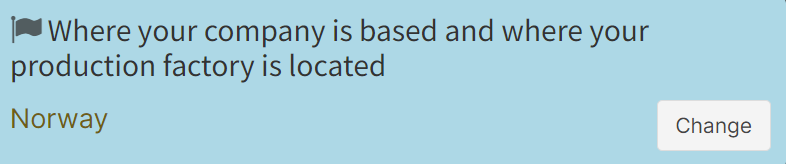
Press “Change”
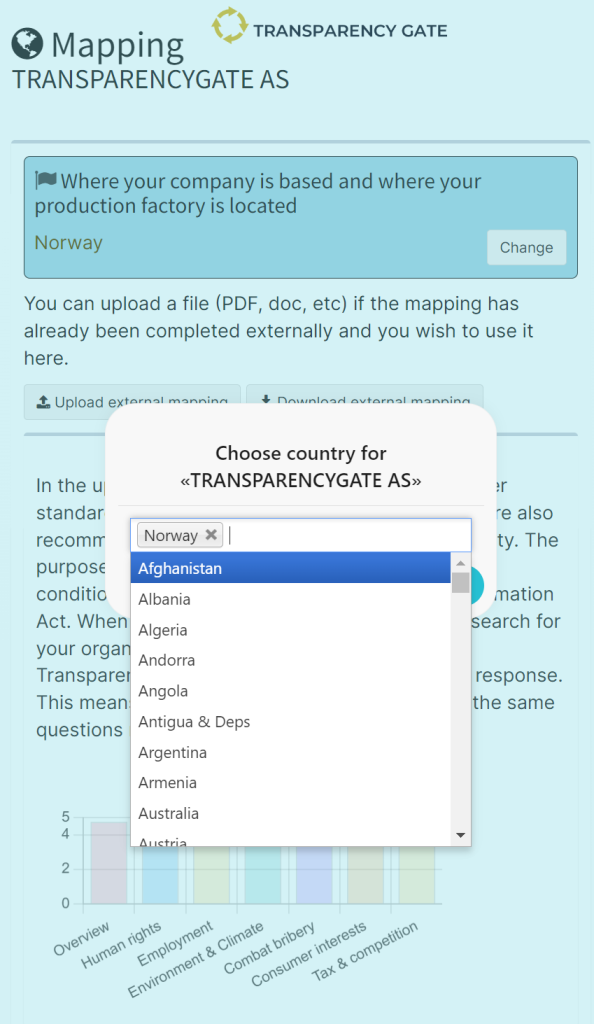
Select the countries you trade with and click “Save.”
3.3 Answer the Questions
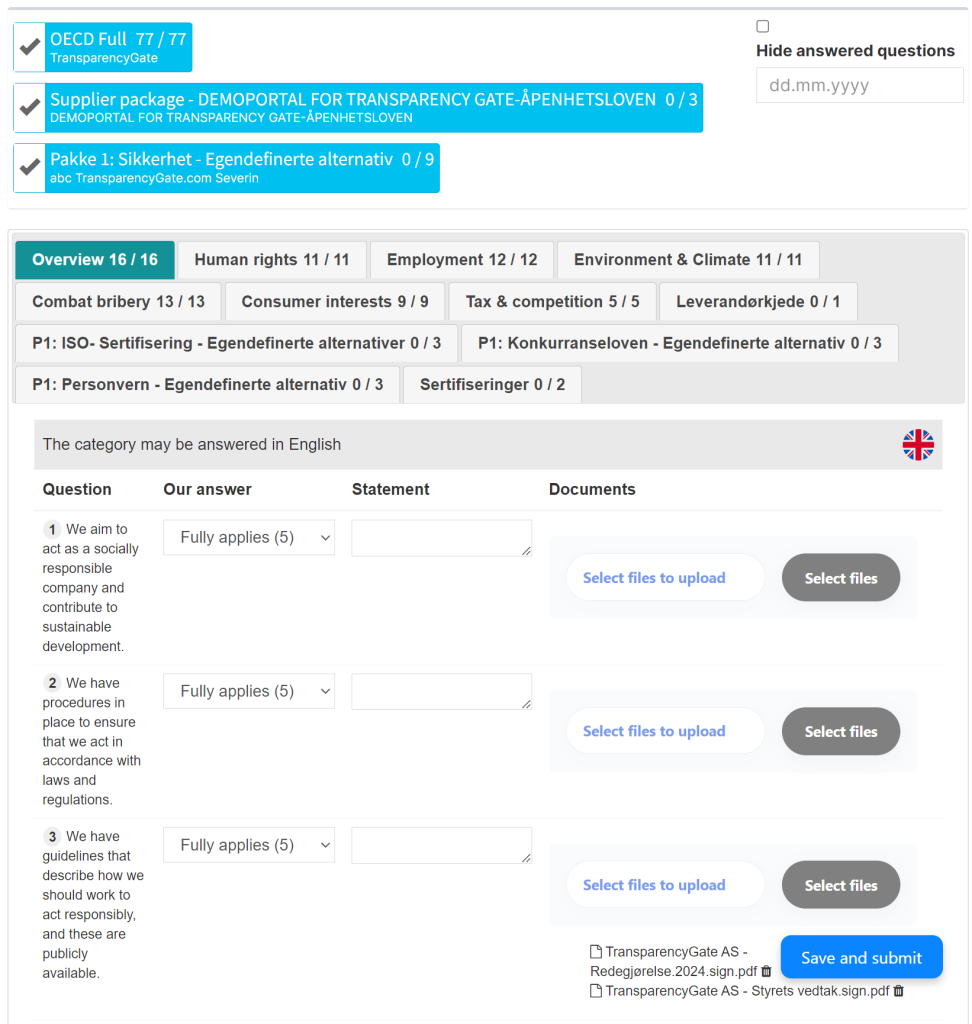
In OECD-FULL, there are 7 different categories with questions. You can answer the questions using the following response options:
“Does not apply (1)”
“Somewhat applies (2)”
“Partly applies (3)”
“Largely applies (4)”
“Fully applies (5)”
Answer the questions within each category and click “Save and Submit” at the bottom right.
NB!!! Remember to answer all the questions within each category.

3.3.1 Categories, answers, statement, upload document

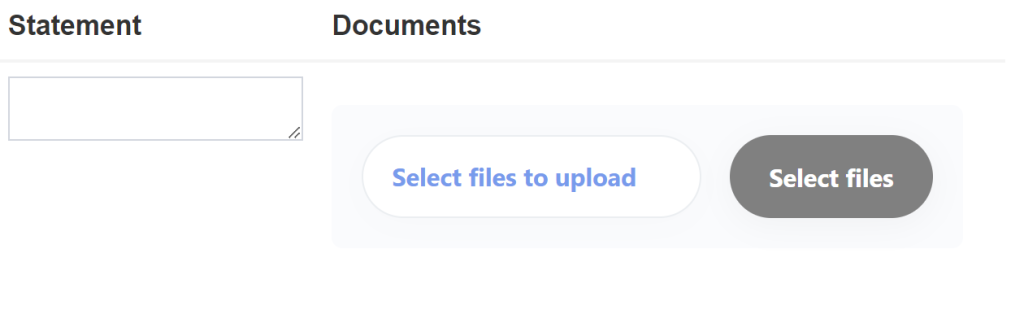
There is also an option to provide an “Statement” and “Documents” if desired. Once you have answered all the questions under all the categories, click “Save reply”. You can always log in later to make changes to your answers if desired.
4.0 Document Signatures

Click on “Document Signatures” on the meny to left.
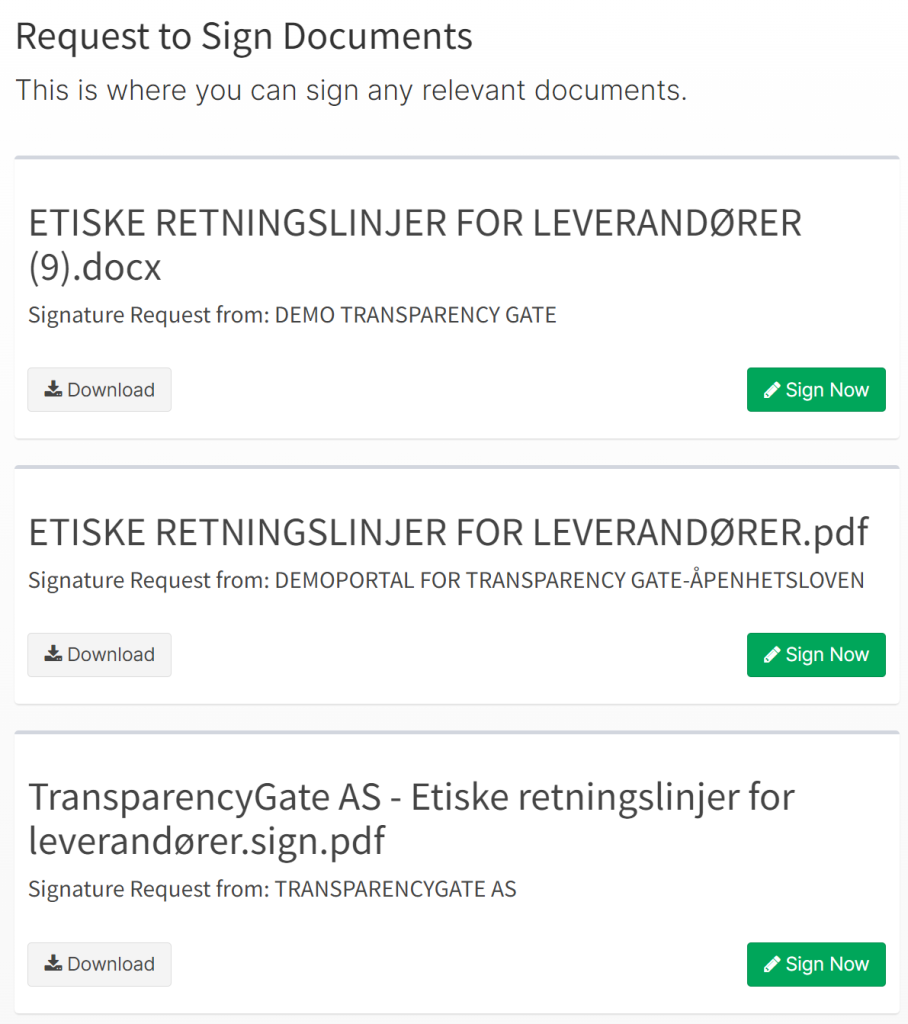
If the button is not visible, it means there are no documents to sign.
5.0 Video explanation
Here is a video explaining the process of registering, mapping, and submitting answers to the required questions.